
Short answer
Pasting a video link into WordPress gives you the hosting platform’s default player: their logo in the control bar, their title card before playback, and their suggested videos at the end. That is the Embed block working exactly as designed, and no WordPress setting changes it.
To control how the video looks, you use a Custom HTML block instead and paste a player of your own. The one catch worth knowing before you start: on WordPress.com you need a plan with hosting features enabled before <script> or <iframe> tags are allowed at all. Self-hosted WordPress has no such restriction.
The three ways WordPress puts a video on a page
It helps to know which one you are using, because two of the three give you no control over presentation.
| Method | Effort | What you get |
|---|---|---|
| Paste the URL on its own line | None | WordPress auto-detects the link and inserts the platform’s default player. |
| Embed or YouTube block | Low | The same default player, just added deliberately instead of automatically. |
| Custom HTML block | One paste | Whatever player you give it, including one in your own colors that ends on your call to action. |
The first two are the same thing underneath. WordPress recognizes the link and asks the video platform for its standard embed code, which is why no amount of clicking in WordPress will change how that player looks. If you have tried adding parameters to the URL to clean it up, most of that advice stopped working in 2018.
Step by step: the Custom HTML block
This takes about a minute once you have a snippet to paste. In Vid Sharpei that means creating a player, choosing your accent color and end-of-video message, and copying the embed snippet it gives you.
- Open the page or post you want the video on, in the block editor.
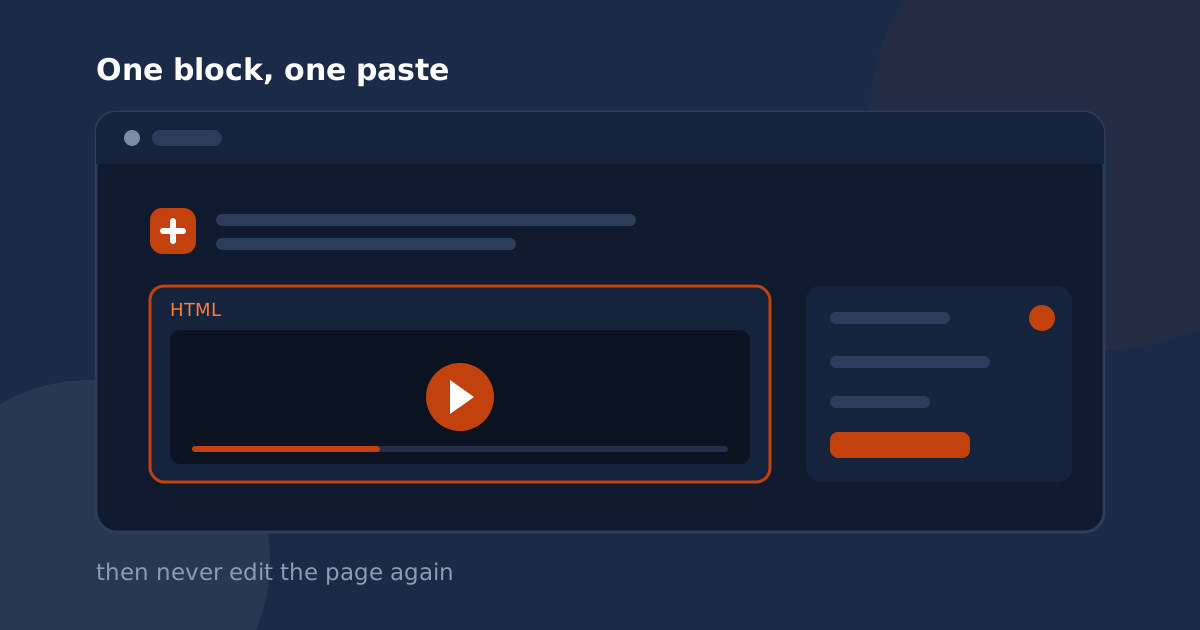
- Click the + button where the video should go and search for Custom HTML. Add that block. Do not use a Paragraph block, which is the most common mistake and is why some people end up with their code visible as text on the page.
- Paste your snippet into the block. It will look like this:
<div data-vidsharpei="your-player-id"></div>
<script async src="https://www.vidsharpei.com/player.js"></script>- Use the Preview tab inside the block to check it renders. The Custom HTML block deliberately shows raw code while you are editing, so an empty-looking block is normal.
- Publish or update the page, then load it in a normal browser tab.
The player fills the width of whatever container you put it in and keeps the video’s aspect ratio, so it behaves like any other block in your layout. To make it narrower, put the block inside a Column or Group block and size that.
The WordPress.com catch
This trips up a lot of people, and it is worth checking before you spend time on it. There are two different products with similar names:
- Self-hosted WordPress, the software you install with a host like SiteGround or Kinsta. No restrictions. Paste whatever you like.
- WordPress.com, the hosted service. It permits basic HTML on every plan, but
<script>,<iframe>,<embed>,<form>and similar tags require a paid plan with hosting features activated. On lower plans they are stripped out silently.
So if you paste a snippet, update the page, and nothing appears at all, your plan is the first thing to check. If iframes are permitted but scripts are not, use the iframe version of the snippet instead:
<iframe src="https://www.vidsharpei.com/v/your-player-id"
  style="width:100%;aspect-ratio:16/9;border:0;border-radius:12px;"
  allow="autoplay; fullscreen" allowfullscreen></iframe>
It is the same player. The script version is slightly better behaved inside complex layouts, which is the only reason it is the default recommendation.
When it does not work
Almost every report we see is one of four things:
- The code shows up as text on the page. It went into a Paragraph block rather than a Custom HTML block, or into the Visual tab of the Classic editor.
- Nothing appears at all. Either a WordPress.com plan restriction, or a security plugin stripping scripts. Wordfence and similar plugins can be configured to allow it.
- The old version keeps showing.A caching plugin, or your host’s page cache. Clear it and hard-refresh.
- It looks stretched or tiny. The surrounding container has an unusual width. Wrap the block in a Group block and set the width there.
What this does to page speed
Worth a word, because video embeds are a common cause of slow pages. A standard embed pulls a substantial amount of JavaScript on page load, whether or not anyone watches. A player that defers loading, ours included, fetches almost nothing until a visitor presses play, so the cost lands only on people who actually want the video.
If you have European visitors, it is also worth knowing what a video embed transmits before anyone clicks: what youtube-nocookie actually does covers that in more detail than most WordPress guides will.
Getting it to match your brand
Once the snippet is in place, the presentation is yours to set, and none of it requires touching WordPress again. Pick the accent color the controls use, upload a cover image so the first frame is one you chose, and write the message and button that appear when the video finishes. Change any of it later and every page carrying that snippet updates on its own, because the settings live with the player rather than in your page content.
That last part is the real reason to use a Custom HTML block over the Embed block. Not the colors, but never having to edit the page again.